> ## Documentation Index
> Fetch the complete documentation index at: https://docs.helloleo.dev/llms.txt
> Use this file to discover all available pages before exploring further.
# Analytics
> Track traffic and usage across your projects and workspace
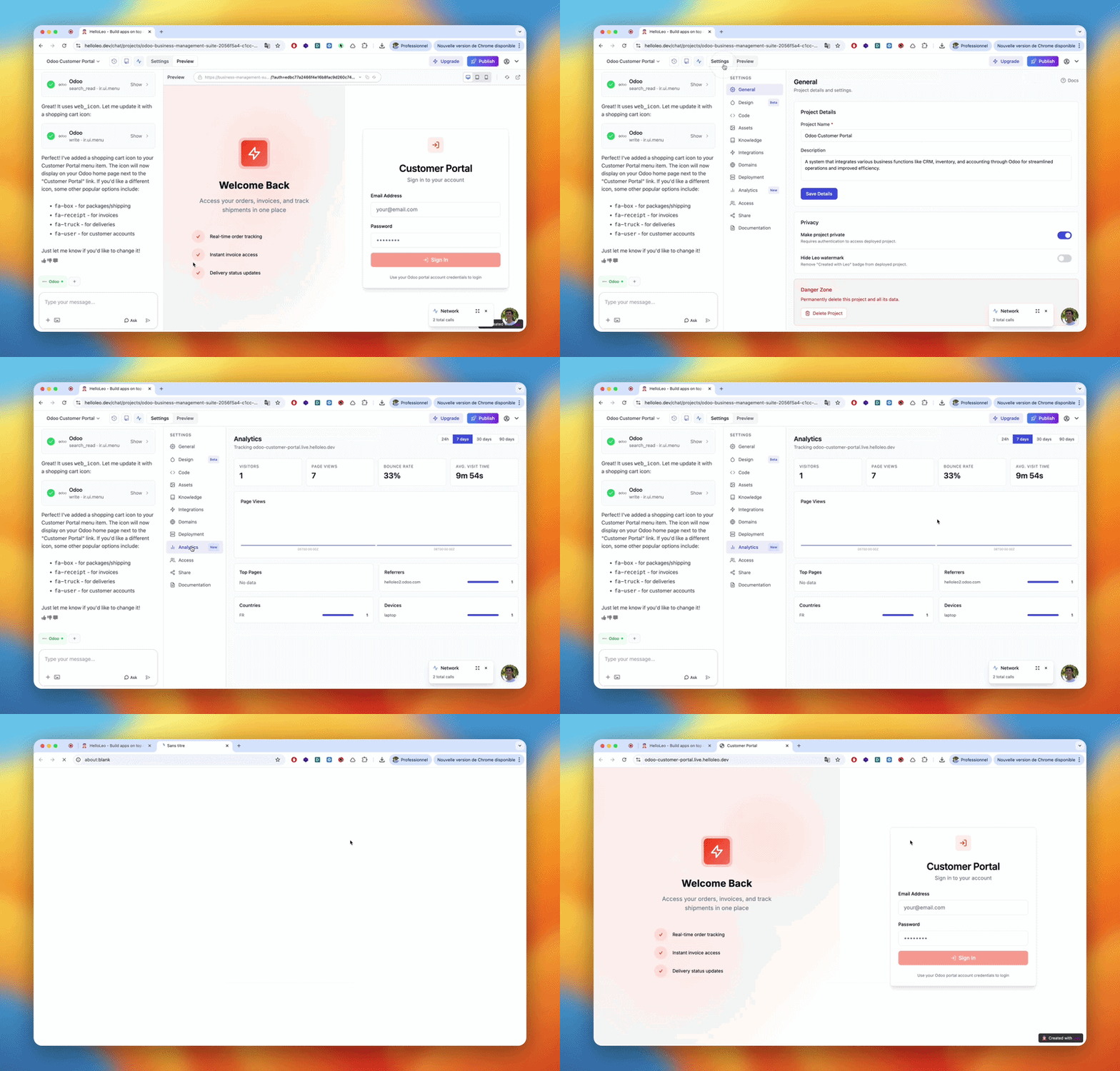 HelloLeo gives you built-in analytics for your deployed projects—no tracking code to install, no third-party tools required.
## Project Analytics
Project Analytics is available on **Business** plan and above.
Each deployed project has its own analytics dashboard showing how your app is performing in the real world.
### Accessing Project Analytics
1. Open a deployed project
2. Click the **Analytics** tab in the project navigation
### What You Can Track
* **Page views** - Total visits to your deployed app
* **Traffic over time** - Daily and weekly visit trends
* **Top pages** - Which pages get the most visits
* **Referrers** - Where your visitors are coming from
Analytics start recording automatically as soon as your project is deployed. No setup required.
## Workspace Analytics
Workspace Analytics is available on the **Enterprise** plan.
Workspace Analytics gives you an aggregated view of activity across all projects in your workspace—useful for agencies and teams managing multiple apps.
### Accessing Workspace Analytics
1. Go to **Workspaces** in the sidebar
2. Open the workspace you want to monitor
3. Click the **Analytics** tab
### What You Get
* **Workspace-wide traffic** - Combined metrics across all workspace projects
* **Per-project breakdown** - See which projects drive the most activity
* **Team usage** - Monitor prompt usage and project activity per workspace member
* **Activity over time** - Usage trends for the whole workspace
Invite your team to collaborate on projects
Connect your own domain to deployed projects
HelloLeo gives you built-in analytics for your deployed projects—no tracking code to install, no third-party tools required.
## Project Analytics
Project Analytics is available on **Business** plan and above.
Each deployed project has its own analytics dashboard showing how your app is performing in the real world.
### Accessing Project Analytics
1. Open a deployed project
2. Click the **Analytics** tab in the project navigation
### What You Can Track
* **Page views** - Total visits to your deployed app
* **Traffic over time** - Daily and weekly visit trends
* **Top pages** - Which pages get the most visits
* **Referrers** - Where your visitors are coming from
Analytics start recording automatically as soon as your project is deployed. No setup required.
## Workspace Analytics
Workspace Analytics is available on the **Enterprise** plan.
Workspace Analytics gives you an aggregated view of activity across all projects in your workspace—useful for agencies and teams managing multiple apps.
### Accessing Workspace Analytics
1. Go to **Workspaces** in the sidebar
2. Open the workspace you want to monitor
3. Click the **Analytics** tab
### What You Get
* **Workspace-wide traffic** - Combined metrics across all workspace projects
* **Per-project breakdown** - See which projects drive the most activity
* **Team usage** - Monitor prompt usage and project activity per workspace member
* **Activity over time** - Usage trends for the whole workspace
Invite your team to collaborate on projects
Connect your own domain to deployed projects